
Private Lesson Recordings
Split private lesson recordings into practice clips
Turn one long lesson recording into short clips students will actually revisit during practice. Great for music, language, and coaching lessons.
Upload audio
Drop the lesson recording to start clipping
Upload the lesson recording here and continue in the full cutter to isolate exercises, assignments, and feedback moments.
Why This Workflow Works
Practice happens in loops, not in one 60-minute timeline
Private lesson recordings are full of useful material, but the useful material is usually not the whole file. It is the assigned phrase, the pronunciation drill, the corrective example, or the specific feedback moment the student needs to hear again later.
AudioMultiCut fits that job because it keeps the work centered on the recording itself: upload once, split into practice clips, trim the edges, and export the useful parts without turning the session into a heavy editing project.
Music lessons
Break a long lesson into scales, etudes, assigned bars, fingering fixes, and repertoire sections that are easier to replay during practice.
Language tutoring
Save pronunciation drills, listening exercises, grammar explanations, and the exact correction the student needs to hear again.
Coaching and performance lessons
Pull out warm-ups, speaking notes, acting beats, or specific feedback moments so the student can return to one instruction at a time.
Workflow
A clean way to turn the lesson into practice-ready clips
Upload the full lesson once
Bring in the phone recording, Zoom export, or studio capture exactly as it was saved. No conversion step is required just to start clipping.
Split by exercise or assignment
Create clips around each technique, passage, phrase, drill, or homework moment instead of leaving everything buried inside one long lesson timeline.
Keep the spoken cue and trim the dead air
A good practice clip usually needs the teacher's setup sentence and the useful example, but not the silence before or after it.
Export a reusable practice set
Download short clips the student can revisit during the week without hunting for timestamps or reloading a giant file.
Student And Teacher Payoff
A better handoff than “listen again around minute 37”
Students can replay only the exact drill or correction they need.
Teachers can share assignments without sending the entire lesson.
Long lesson files become organized clip sets instead of one archive blob.
Spoken cues stay attached to the exercise, which makes practice clearer.
Private lessons often need a quieter privacy model
Student recordings, pronunciation practice, and coaching sessions can be sensitive. AudioMultiCut keeps the processing in the browser so the job stays close to the file instead of requiring a server upload just to trim and split it.
The best clips are named like assignments
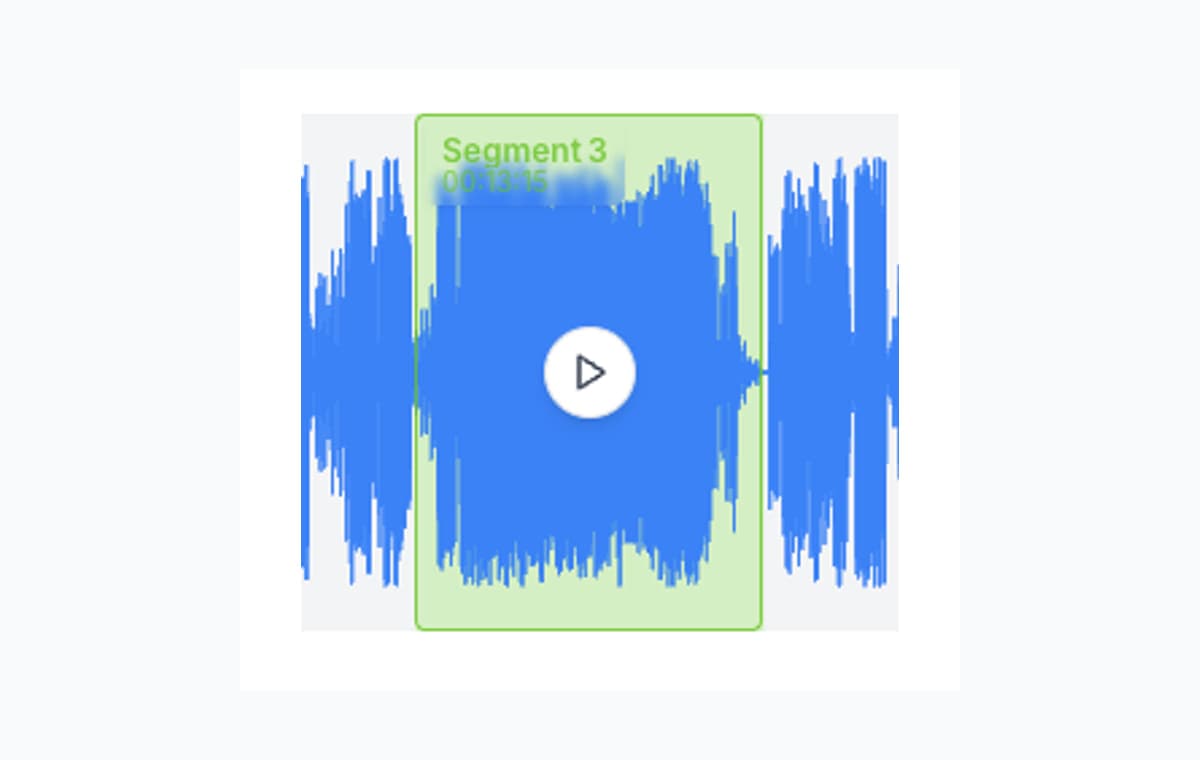
“Minor thirds in G,” “French r drill,” or “Opening paragraph delivery” is much more useful than “segment 3.” The segment-based workflow makes that kind of organization easy before export.
FAQ
Common questions about cutting private lesson recordings
Why split a private lesson recording into clips?
Because students usually do not practice an entire lesson from the top. They come back to one exercise, one explanation, or one assignment. Short clips match the real practice workflow much better.
What kinds of lessons work well here?
Music lessons, language tutoring, vocal coaching, acting lessons, public-speaking practice, and other one-on-one sessions with clear exercise blocks all work well.
Should the clips be MP3 or WAV?
Use MP3 for easy sharing and smaller files. Use WAV if the clip is going into more editing afterward.
Is this private enough for student recordings?
Yes. AudioMultiCut processes the recording locally in the browser, so you do not need to upload the lesson to a server just to split it into practice clips.
Start Now
Turn the lesson into a set of clips the student will actually reuse
Upload the full lesson, split it by exercise or assignment, and export a small set of clear practice clips instead of one long recording.